> ## Documentation Index
> Fetch the complete documentation index at: https://gcore-doc-1256a.mintlify.site/llms.txt
> Use this file to discover all available pages before exploring further.
# Pay for GCore services (payment methods)
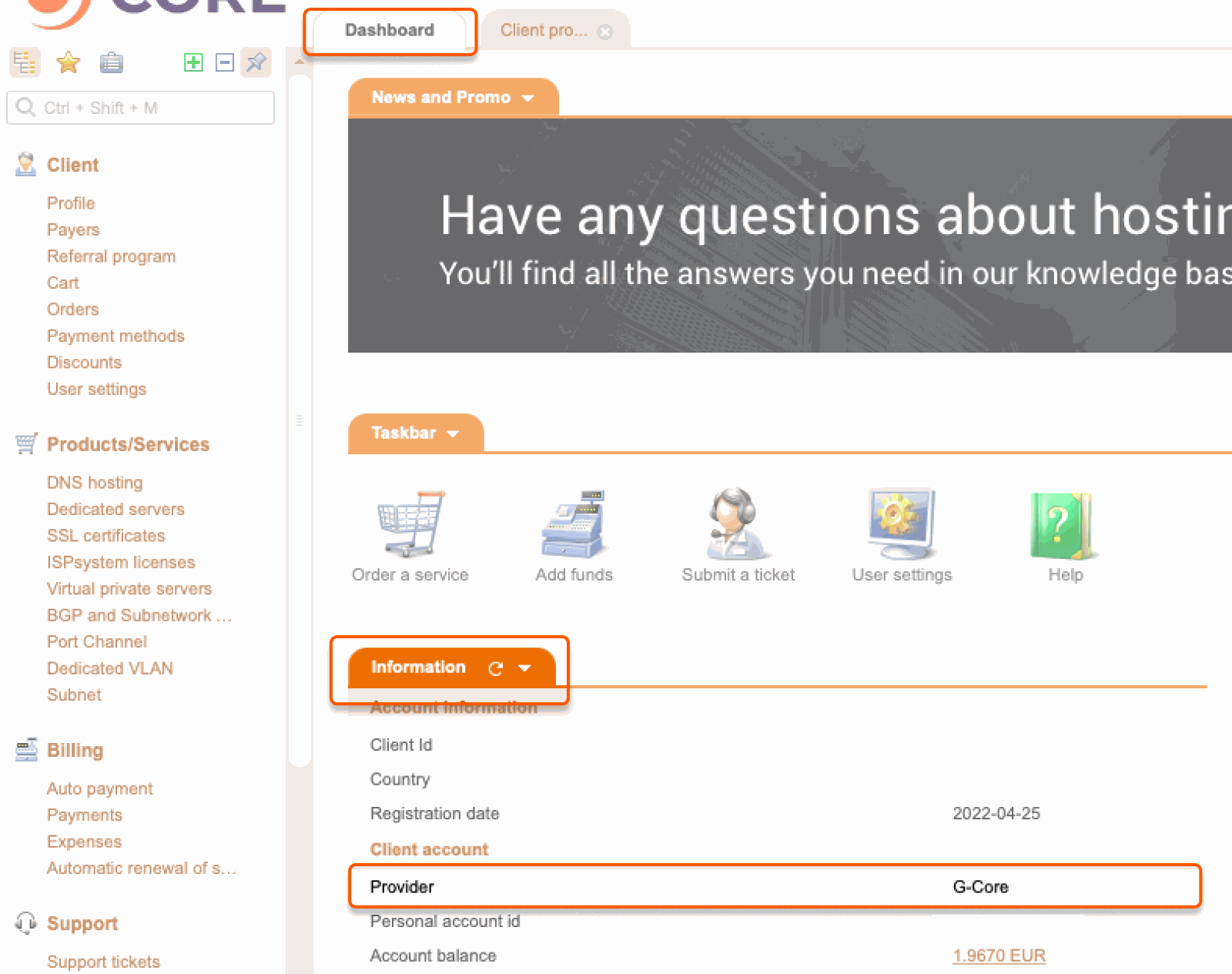
You can pay for Gcore services in USD and euro. The currency depends on your provider. If your provider is Gcore, you'll pay in euro. If your provider is G-Core USD, you'll pay in USD. To view your provider, go to **Dashboard** > **Information** > **Provider**.
 We support payments via PayPal, bank transfer, bank card (Visa, MasterCard, American Express, and Union Pay), and Alipay.
## Pay via PayPal
**Note** : PayPal charges a commission of €0.35 + 3.4% of the payment amount.
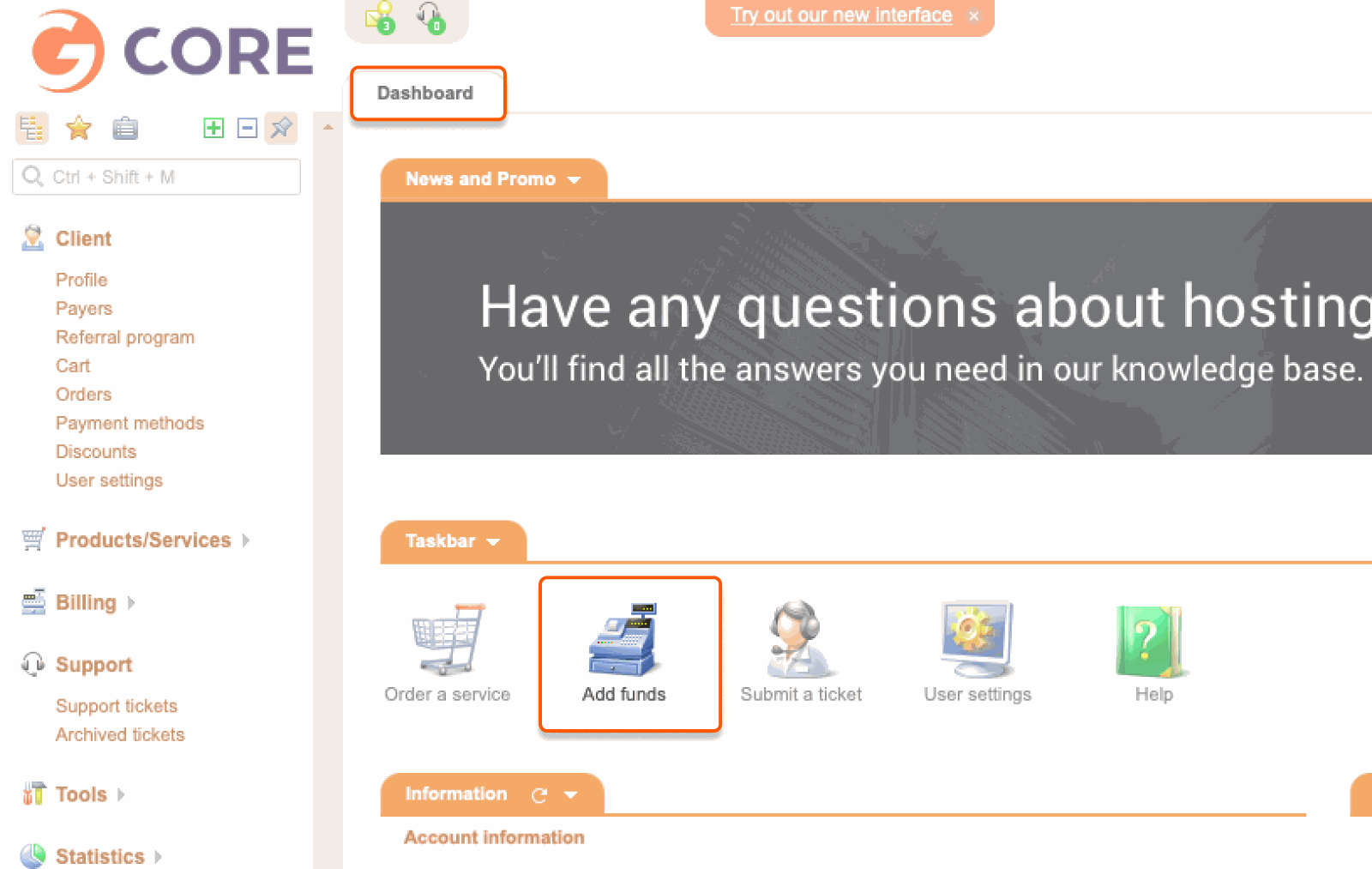
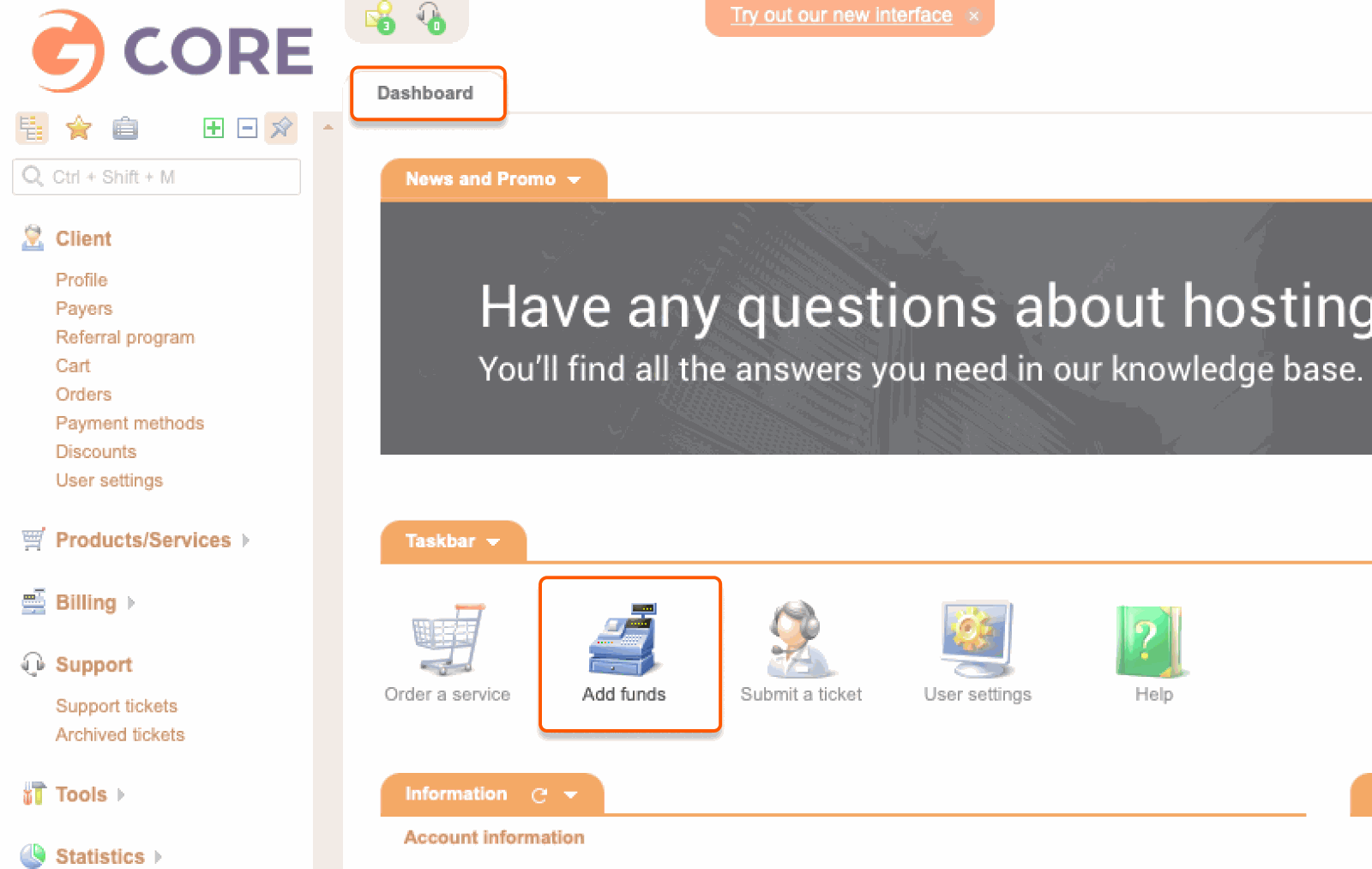
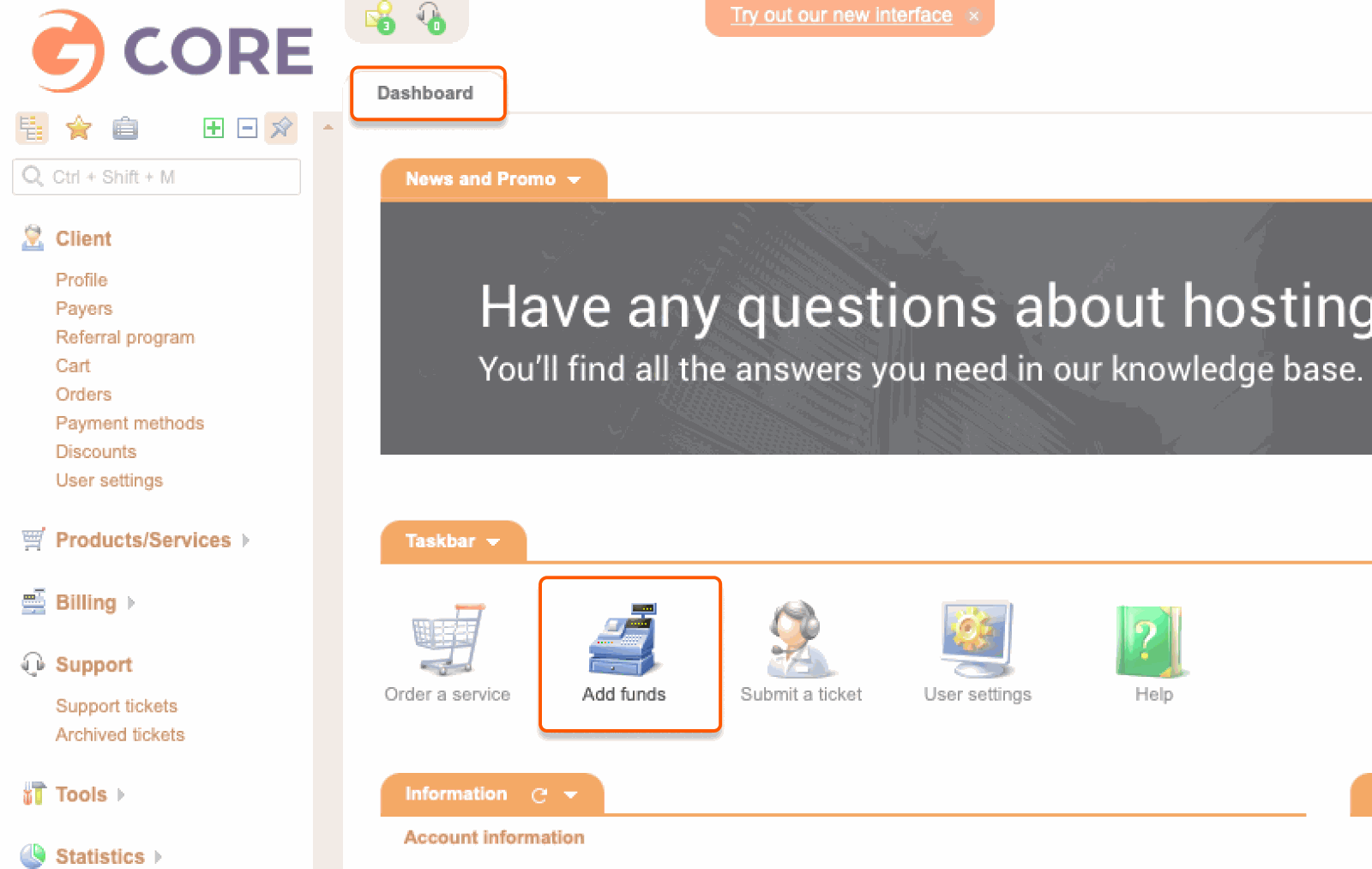
1\. Open the Dashboard and click **Add funds**.
We support payments via PayPal, bank transfer, bank card (Visa, MasterCard, American Express, and Union Pay), and Alipay.
## Pay via PayPal
**Note** : PayPal charges a commission of €0.35 + 3.4% of the payment amount.
1\. Open the Dashboard and click **Add funds**.
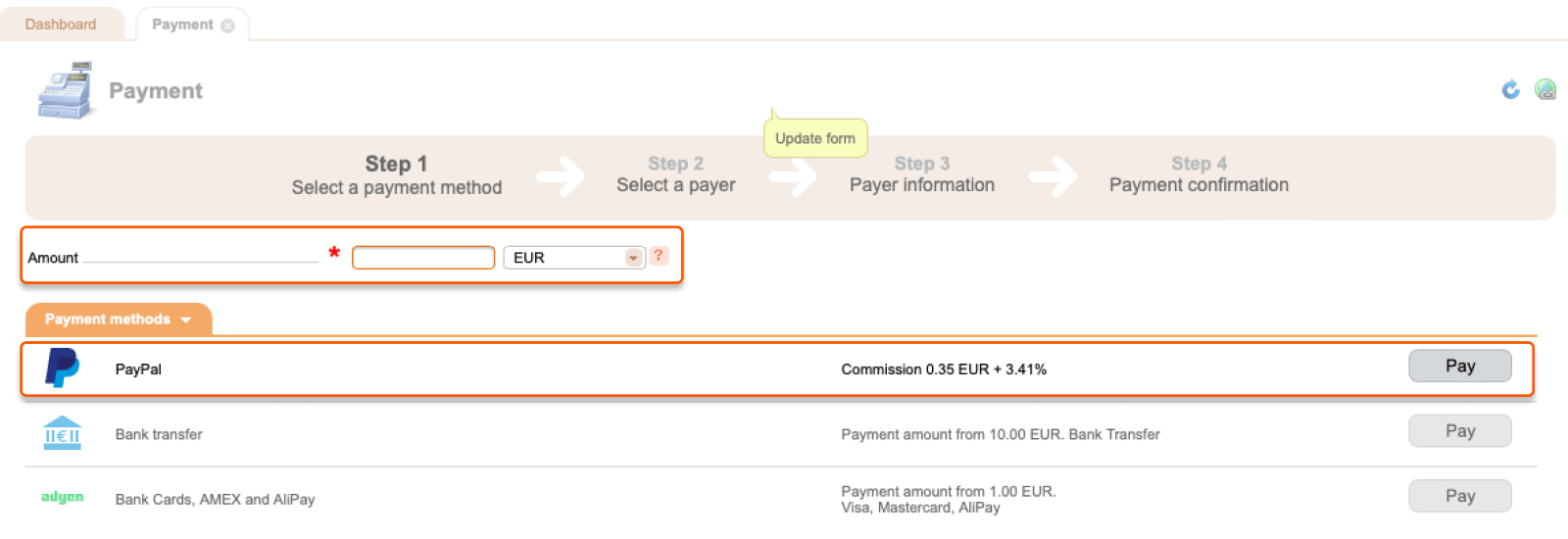
 2\. For **Step 1** :
* Enter the amount of money you want to pay and select the currency.
* Find **PayPal** and click **Pay**.
2\. For **Step 1** :
* Enter the amount of money you want to pay and select the currency.
* Find **PayPal** and click **Pay**.
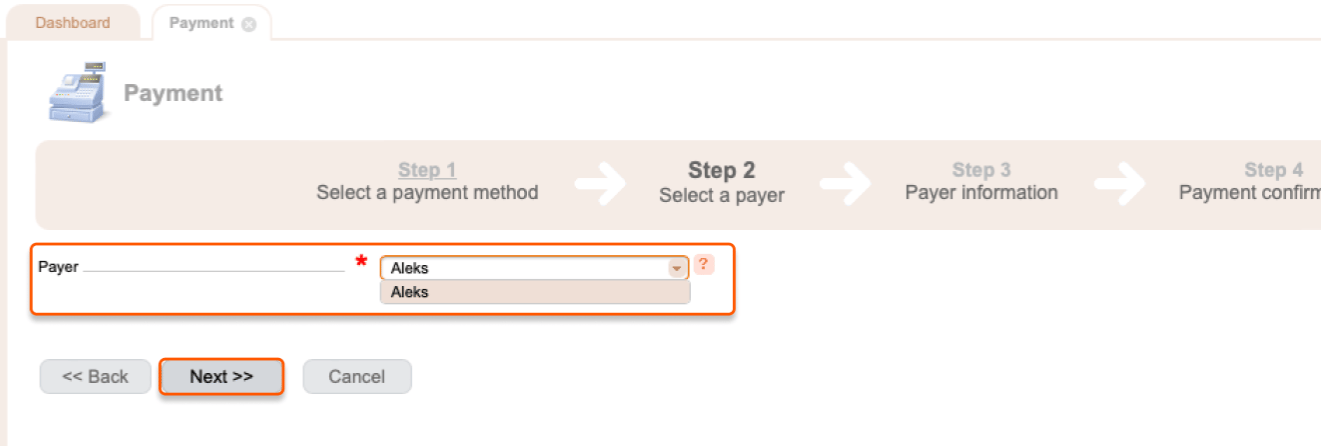
 3\. For **Step 2**, select a payer and click **Next**.
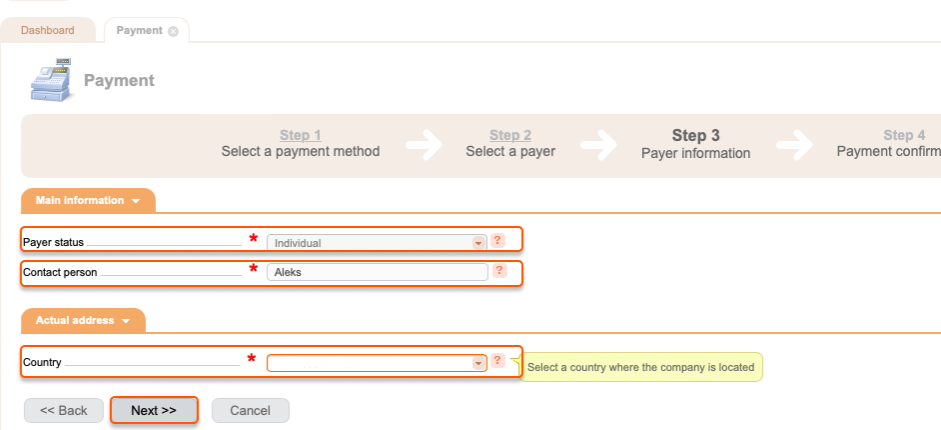
 4\. For **Step 3** :
* Select a payer status.
* Specify a contact person.
* Select the country of your company.
* Click **Next**.
4\. For **Step 3** :
* Select a payer status.
* Specify a contact person.
* Select the country of your company.
* Click **Next**.
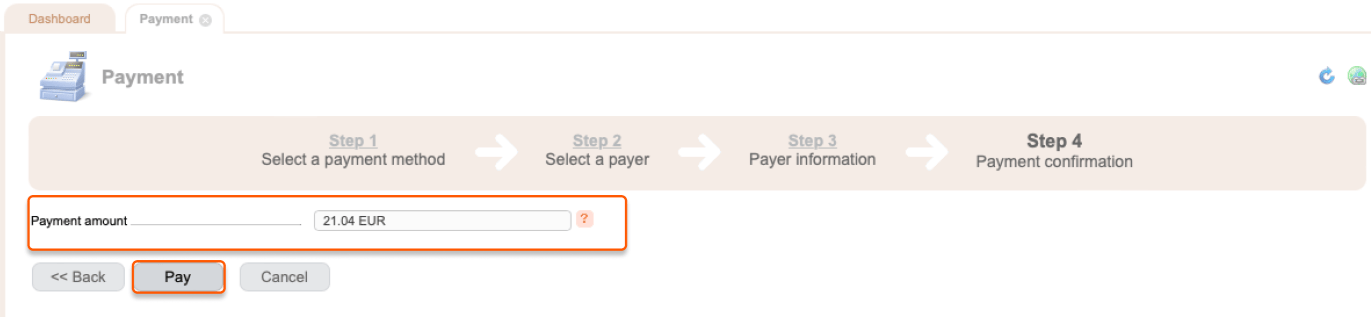
 5\. For **Step 4**, confirm the payment amount, including the PayPal commission, and click **Pay**.
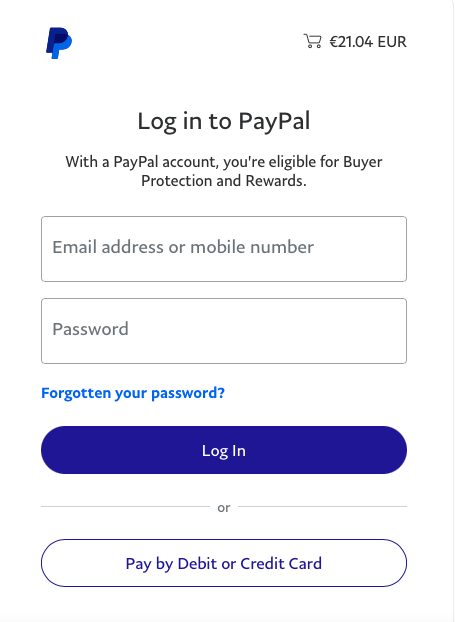
 6\. Log in to your PayPal account, or select **Pay by Debit or Credit Card** to pay as a PayPal guest, and complete your payment.
 The money will be added to your balance within 72 hours. If this does not happen, please [write to technical support](/hosting/contact-our-technical-support) and we will solve the problem.
## Pay via bank transfer
**Note** : For bank transfer, the minimum payment amount is €10.
1\. Go to the Dashboard and click **Add funds**.
The money will be added to your balance within 72 hours. If this does not happen, please [write to technical support](/hosting/contact-our-technical-support) and we will solve the problem.
## Pay via bank transfer
**Note** : For bank transfer, the minimum payment amount is €10.
1\. Go to the Dashboard and click **Add funds**.
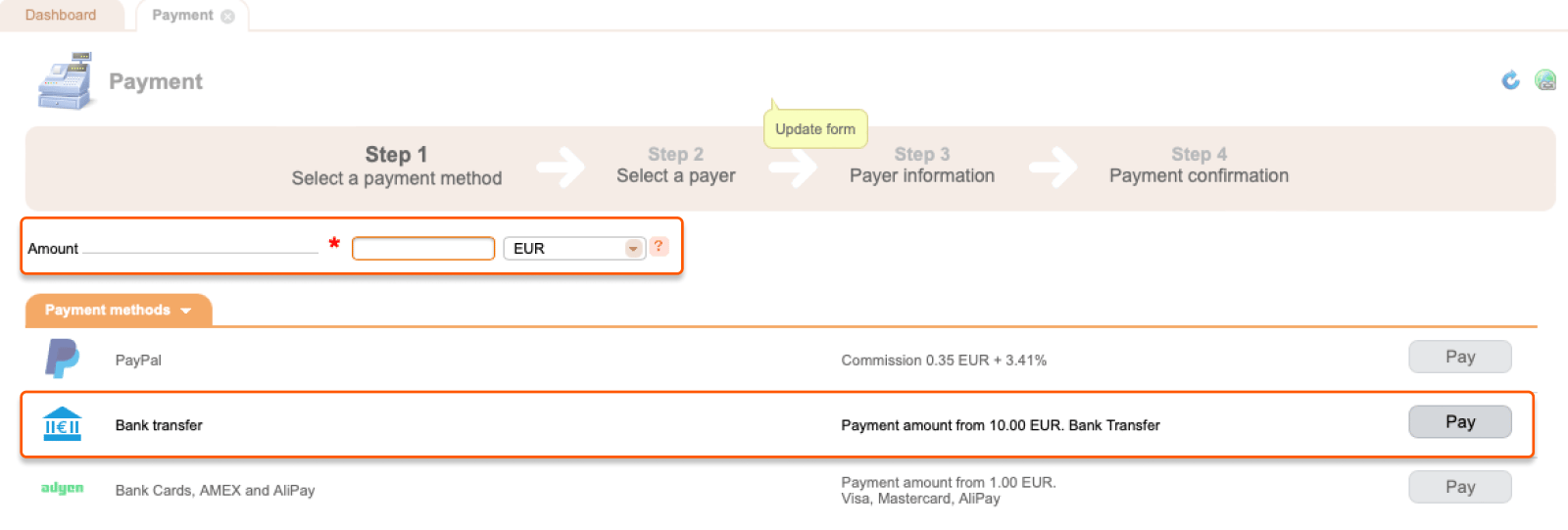
 2\. For **Step 1** :
* Enter the amount of money you want to pay and select the currency.
* Find **Bank Transfer** and click **Pay**.
2\. For **Step 1** :
* Enter the amount of money you want to pay and select the currency.
* Find **Bank Transfer** and click **Pay**.
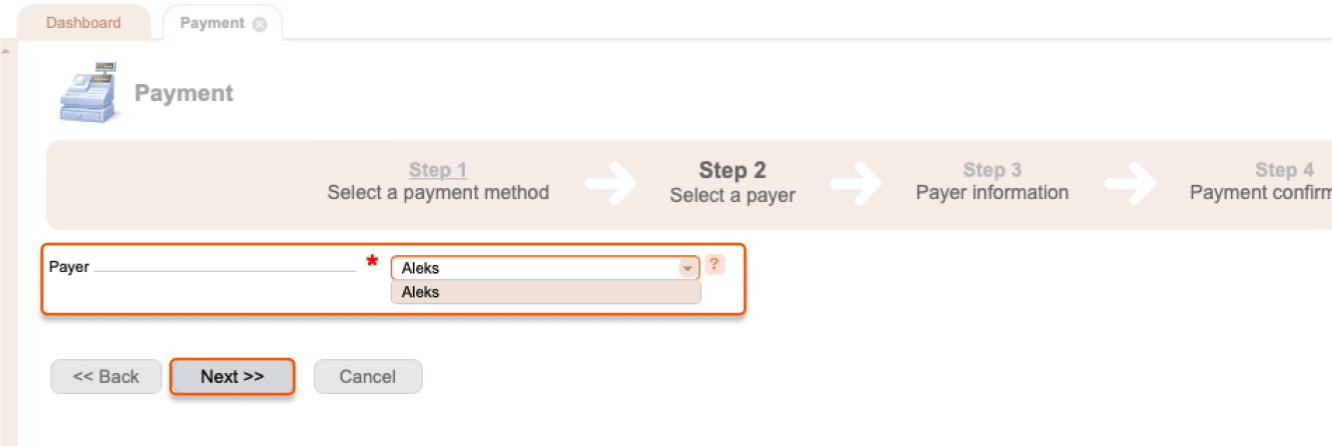
 3\. For **Step 2**, select a payer and click **Next**.
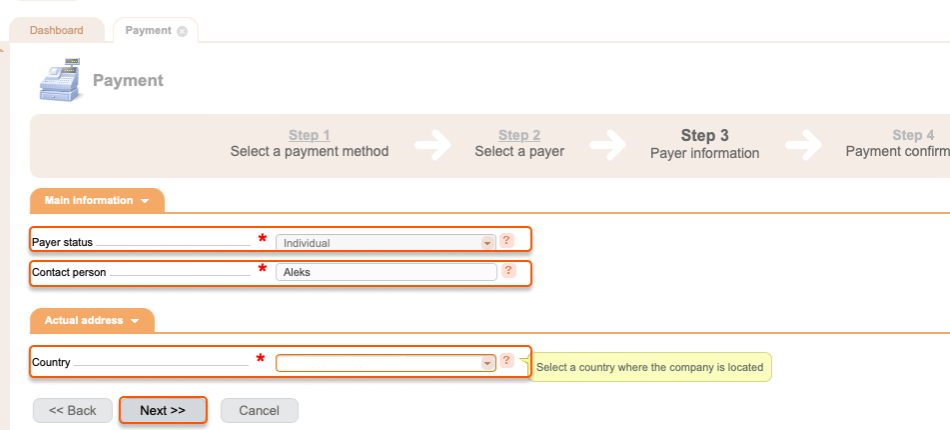
 4\. For **Step 3** :
* Select a payer status.
* Specify a contact person.
* Select the country of your company.
* Click **Next**.
4\. For **Step 3** :
* Select a payer status.
* Specify a contact person.
* Select the country of your company.
* Click **Next**.
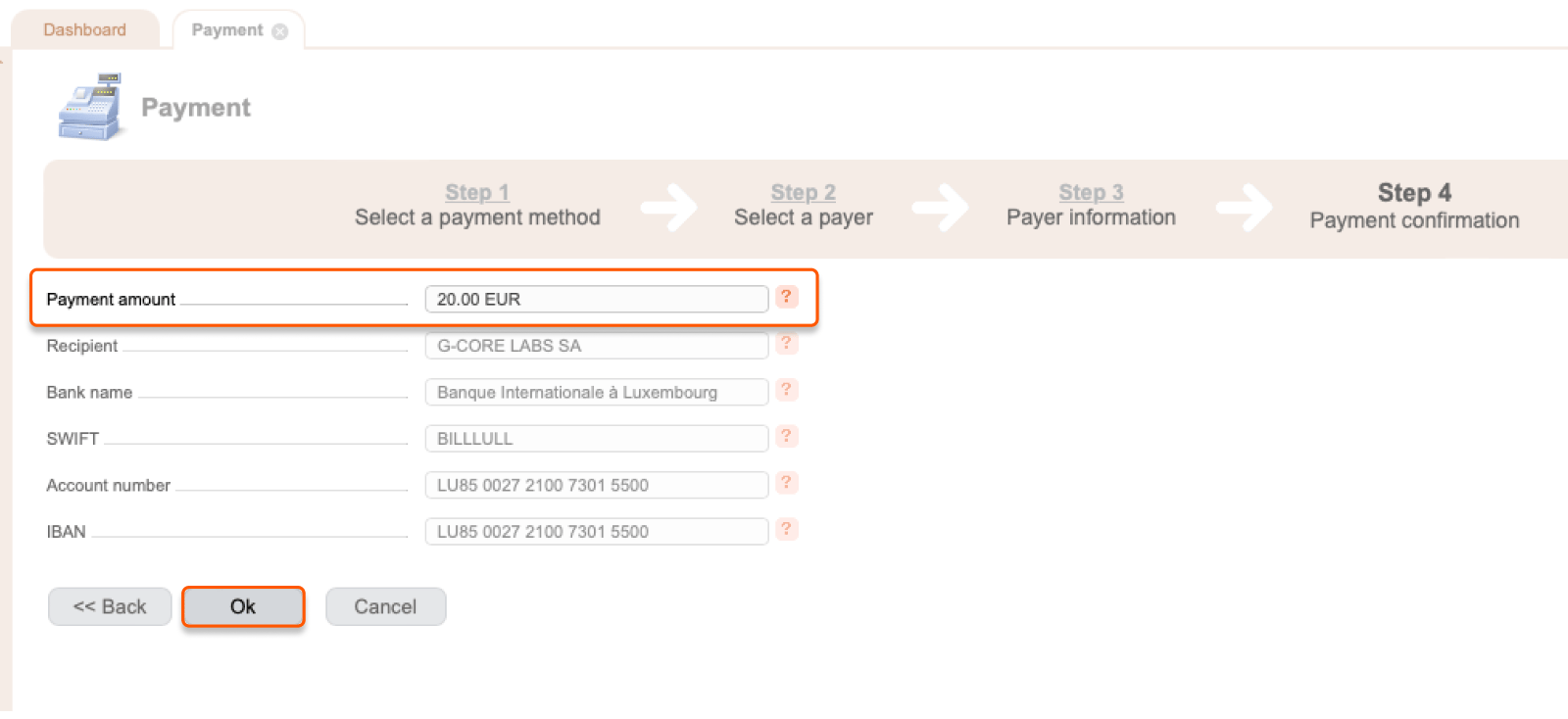
 5\. For **Step 4**, confirm the payment amount and click **Ok**.
 The system will generate an invoice in a new tab. Right click to save or print it.
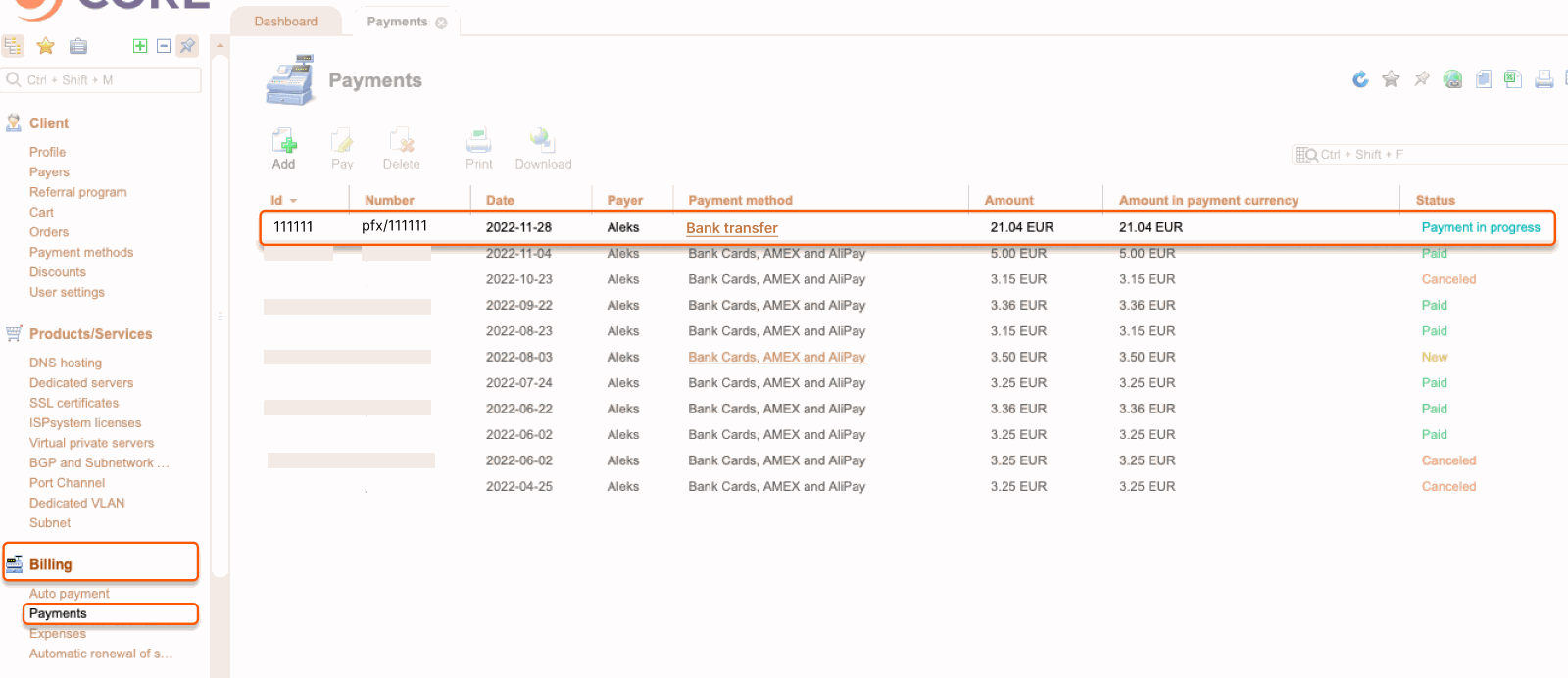
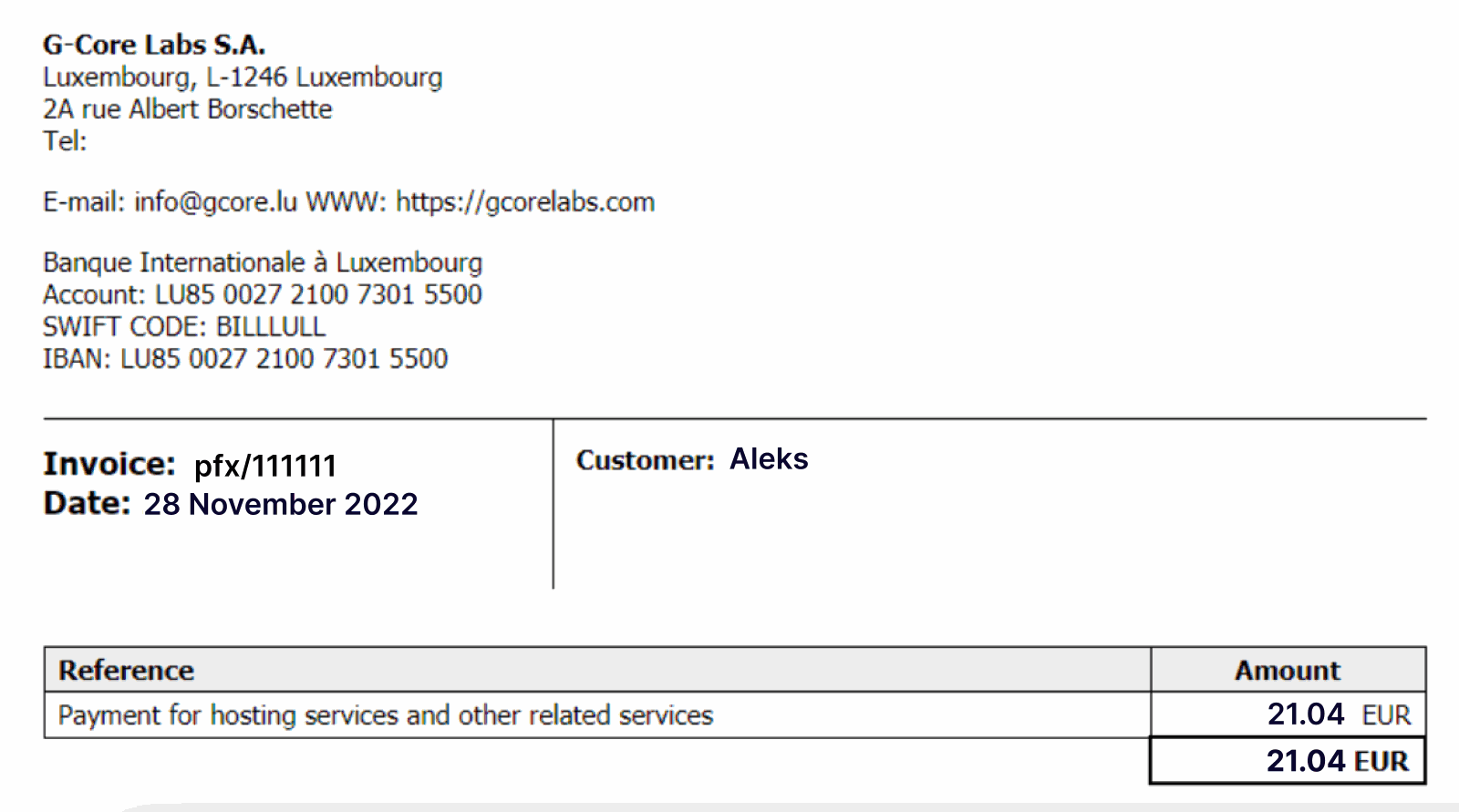 You can always download the invoice from the control panel: go to **Billing** > **Payments** and click the required payment.
 Contact the accounting department of your company or your bank to complete the payment.
If contacting your bank, specify the full pfx/XXX number. For example, "pfx/111111".
The money will be added to your balance within 5 business days. If this does not happen, please [write to technical support](/hosting/contact-our-technical-support). Describe the issue and attach a transaction statement with a bank stamp. We'll be happy to help.
## Pay via bank card or Alipay
**Note** : We do not charge a commission, but your bank may.
1\. Go to the Dashboard and click **Add funds**.
Contact the accounting department of your company or your bank to complete the payment.
If contacting your bank, specify the full pfx/XXX number. For example, "pfx/111111".
The money will be added to your balance within 5 business days. If this does not happen, please [write to technical support](/hosting/contact-our-technical-support). Describe the issue and attach a transaction statement with a bank stamp. We'll be happy to help.
## Pay via bank card or Alipay
**Note** : We do not charge a commission, but your bank may.
1\. Go to the Dashboard and click **Add funds**.
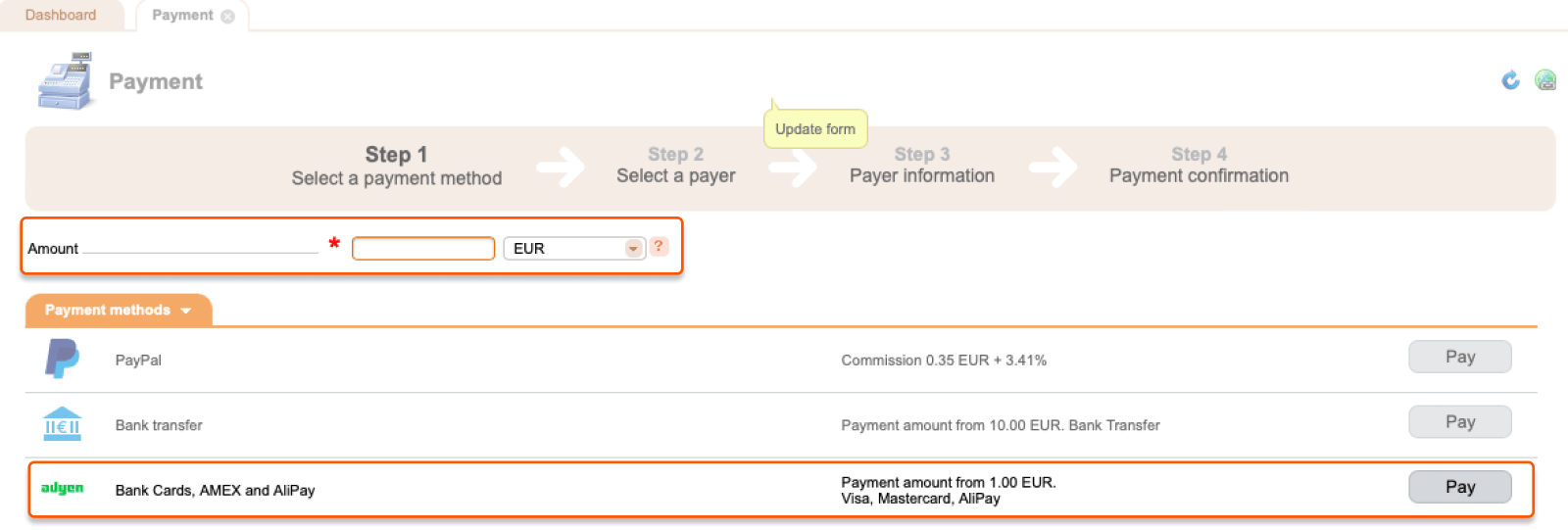
 2\. For **Step 1** :
* Enter the amount of money you want to pay and select the currency.
* Find **Bank cards, AMEX, and Alipay** and click **Pay**.
2\. For **Step 1** :
* Enter the amount of money you want to pay and select the currency.
* Find **Bank cards, AMEX, and Alipay** and click **Pay**.
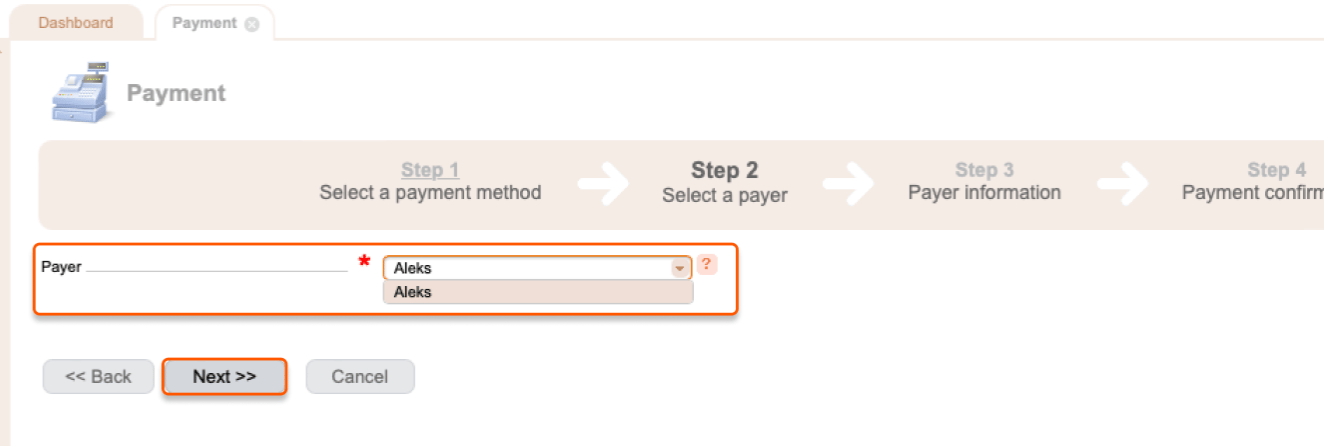
 3\. For **Step 2**, select a payer and click **Next**.
 4\. For **Step 3** :
* Select a payer status.
* Specify a contact person.
* Select the country of your company.
* Click **Next**.
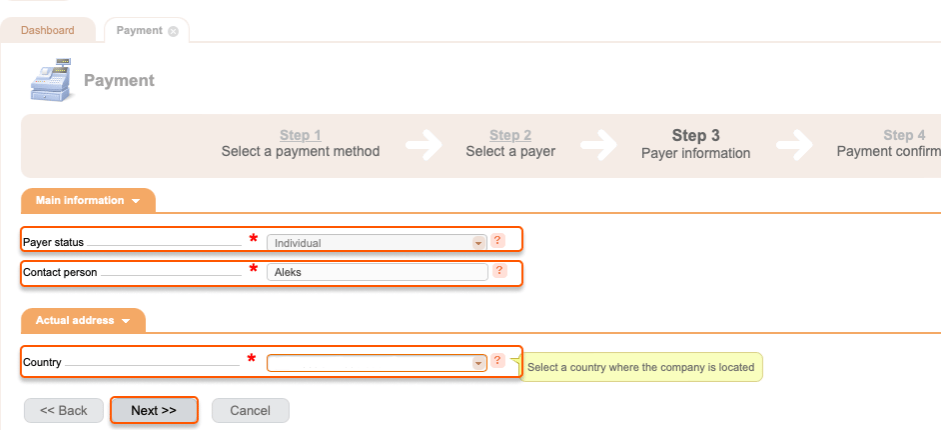
4\. For **Step 3** :
* Select a payer status.
* Specify a contact person.
* Select the country of your company.
* Click **Next**.
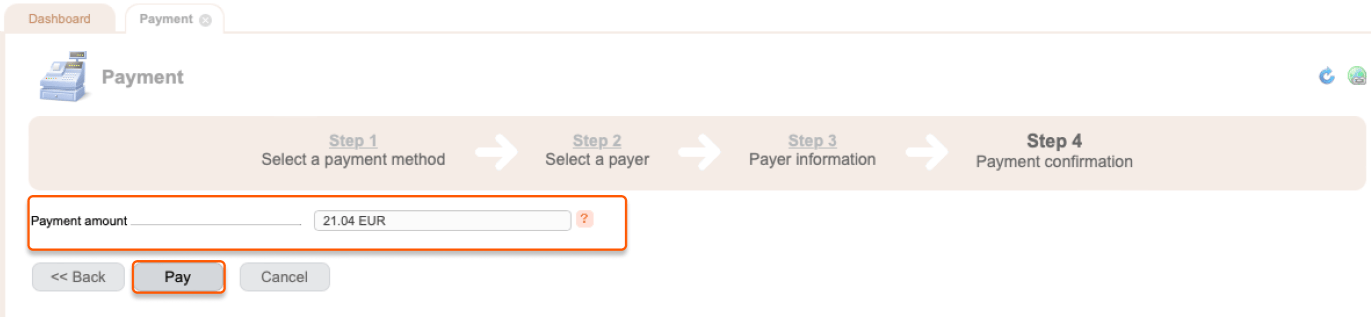
 5\. For **Step 4**, confirm the payment amount and click **Pay**.
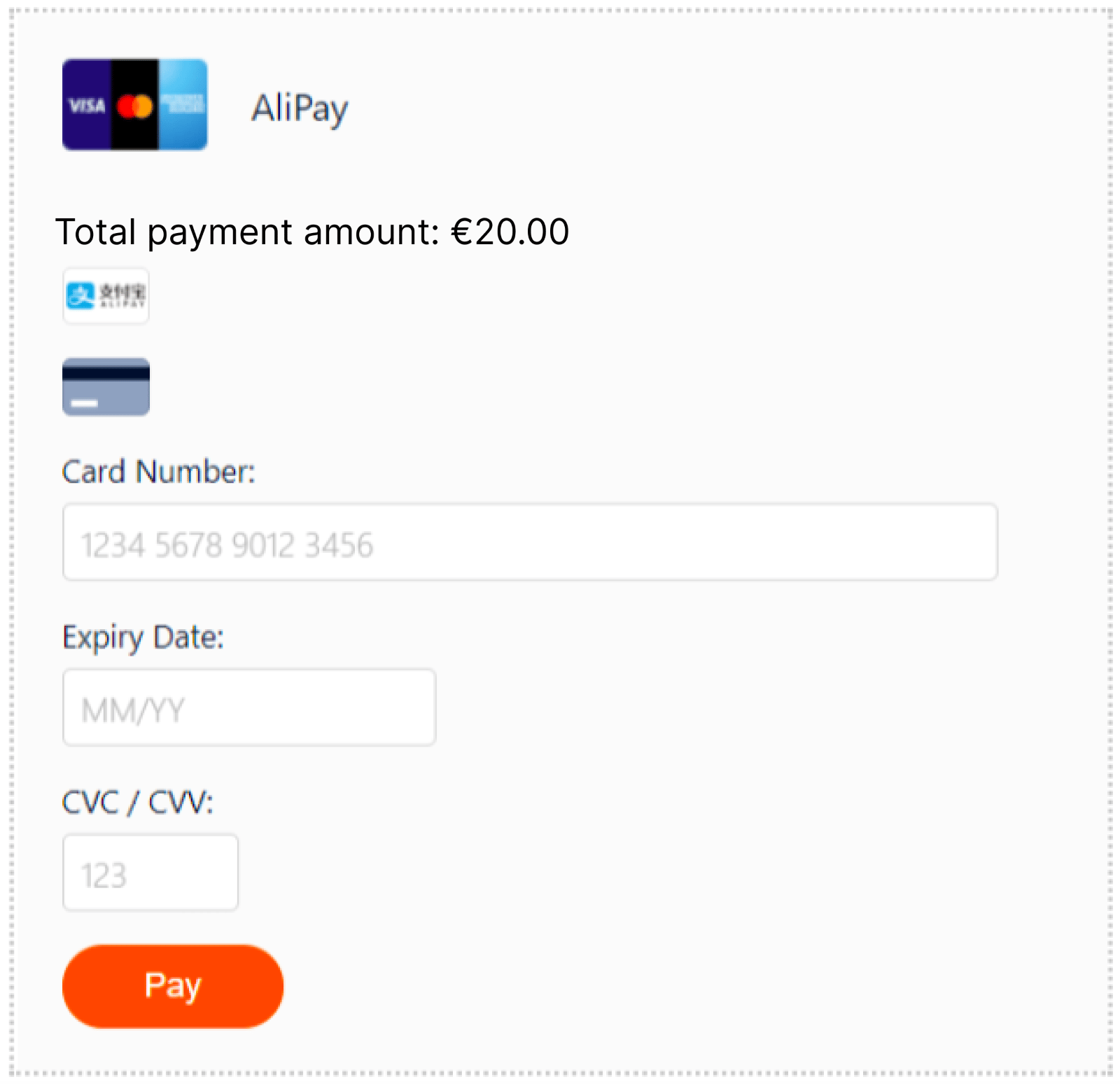
 6\. In the next window, select the payment method and enter the required information. If you want to pay with a bank card, click the bank card icon. If you want to pay via Alipay, click the Alipay icon.
 The money is typically added to your balance within 5-10 minutes. In some cases, it can take up to 24 hours. If you don't see money on your balance after 24 hours, please [write to technical support](/hosting/contact-our-technical-support) and we will solve the problem.
If you use a bank card to pay for our services, you can set up auto payment. Auto payment is a function that recharges your balance automatically. If you don't have enough money on your balance to pay for the service at the time of payment, the system will charge your bank card with the required amount. To configure auto payment, refer to the "[Set up auto payment](/hosting/payments/set-up-auto-payment)" article.
The money is typically added to your balance within 5-10 minutes. In some cases, it can take up to 24 hours. If you don't see money on your balance after 24 hours, please [write to technical support](/hosting/contact-our-technical-support) and we will solve the problem.
If you use a bank card to pay for our services, you can set up auto payment. Auto payment is a function that recharges your balance automatically. If you don't have enough money on your balance to pay for the service at the time of payment, the system will charge your bank card with the required amount. To configure auto payment, refer to the "[Set up auto payment](/hosting/payments/set-up-auto-payment)" article.