> ## Documentation Index
> Fetch the complete documentation index at: https://gcore-doc-1256a.mintlify.site/llms.txt
> Use this file to discover all available pages before exploring further.

# Check statistics of your dedicated server

## A volume of incoming and outcoming traffic

In the DCI Manager panel, go to the "Statistics" section and click on the "Traffic" tab.

Select a period for which you want to retrieve statistics and click **OK**.

<Frame>
  <img src="https://mintcdn.com/gcore-doc-1256a/MzOBwOtlVgGn49AQ/images/docs/hosting/dedicated-servers/check-statistics-of-your-dedicated-server/check-statistics-of-your-dedicated-server-image1.png?fit=max&auto=format&n=MzOBwOtlVgGn49AQ&q=85&s=817ec5bdc7aea720069d46109dd29594" alt="A volume of incoming and outcoming traffic" width="2172" height="300" data-path="images/docs/hosting/dedicated-servers/check-statistics-of-your-dedicated-server/check-statistics-of-your-dedicated-server-image1.png" />
</Frame>

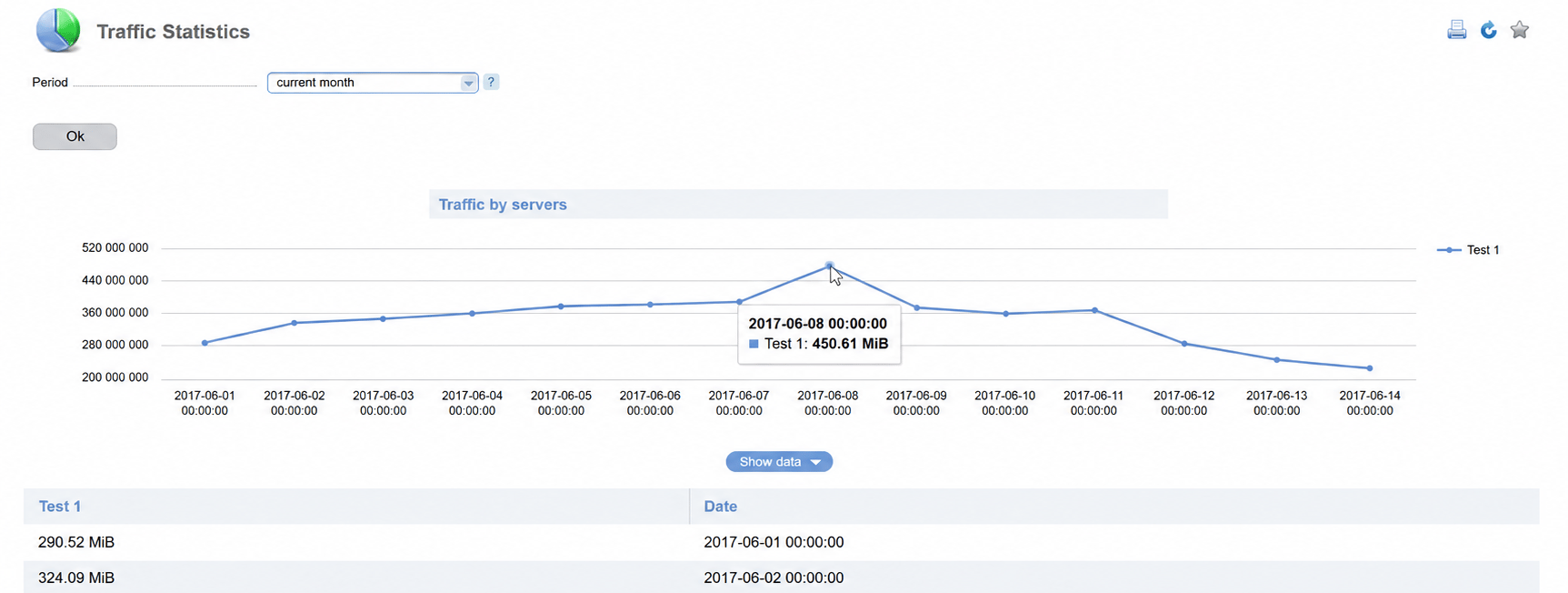
## Total traffic volume

On the "Common Traffic" section you can see a total traffic volume.
<Frame>
  <img src="https://mintcdn.com/gcore-doc-1256a/MzOBwOtlVgGn49AQ/images/docs/hosting/dedicated-servers/check-statistics-of-your-dedicated-server/check-statistics-of-your-dedicated-server-image2.png?fit=max&auto=format&n=MzOBwOtlVgGn49AQ&q=85&s=04643030c1076e263e12e833e79f93fc" alt="Total traffic volume" width="1725" height="652" data-path="images/docs/hosting/dedicated-servers/check-statistics-of-your-dedicated-server/check-statistics-of-your-dedicated-server-image2.png" />
</Frame>
